Battery
Settings Guide

Maximize your iPhone's battery life and learn how to monitor usage. From Low Power Mode to Battery Health, get the most out of every charge.

15+

Settings Covered

iOS 17

Fully Updated

Free

Always

BATTERY ESSENTIALS

Understand Your
iPhone's Battery

Your iPhone's battery is more than just a percentage. Learn about the settings that affect battery life, how to monitor usage, and tips to extend battery longevity.

Battery Usage by App

See which apps consume the most power and adjust accordingly

Battery Health

Monitor maximum capacity and peak performance capability

Low Power Mode

Extend battery life when you're running low on power
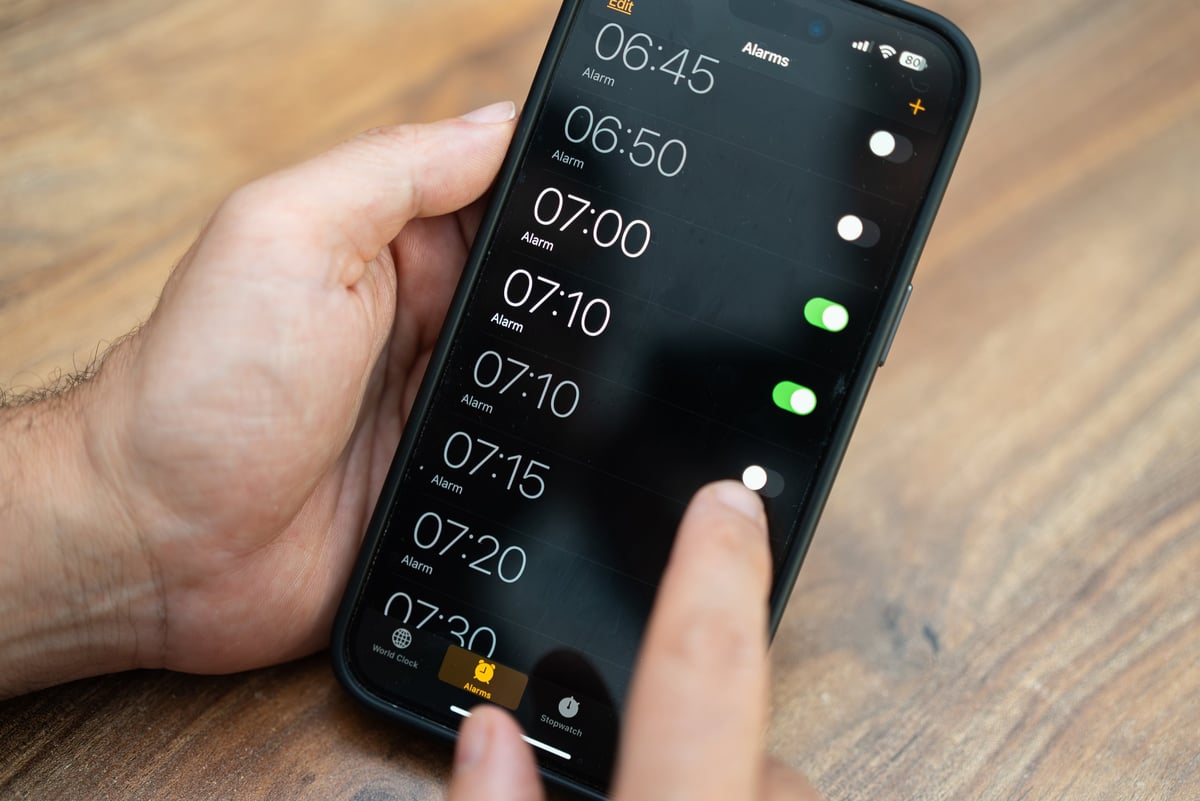
iPhone showing battery settings and usage statistics
87%

Battery Health: Good

12h 34m

Time Since Last Charge

SETUP GUIDES

Battery Settings Guide

Step-by-step instructions for optimizing your iPhone's battery performance

Low Power Mode

Reduce battery consumption by limiting background activity, downloads, and some visual effects.

How to Enable:

  1. 1 Open SettingsBattery
  2. 2 Toggle Low Power Mode ON
  3. 3 Or ask Siri: "Turn on Low Power Mode"

Battery Health

View maximum battery capacity and learn if your battery needs service.

How to Check:

  1. 1 Go to SettingsBattery
  2. 2 Tap Battery Health & Charging
  3. 3 View Maximum Capacity percentage

Battery Usage by App

See exactly which apps are consuming the most battery power.

How to View:

  1. 1 Navigate to SettingsBattery
  2. 2 Wait for battery usage to load (takes a moment)
  3. 3 Toggle Last 24 Hours or Last 10 Days

Optimized Battery Charging

Reduce battery aging by learning your charging routine and limiting time spent at 100%.

How to Enable:

  1. 1 Go to SettingsBatteryBattery Health
  2. 2 Toggle Optimized Battery Charging ON
  3. 3 Keep Charging Optimization set to "Limited" or "Off" for maximum control
BATTERY TIPS

Extend Your Battery Life

Pro tips to get the most out of every charge

Lower Screen Brightness

Reduce brightness manually or enable Auto-Brightness to let your iPhone adjust based on ambient light.

Disable Wi-Fi When Out

Wi-Fi scanning drains battery. Turn it off when you're away from known networks.

Manage Location Services

Some apps constantly use GPS. Review and restrict location access in Settings → Privacy → Location Services.

Limit Push Notifications

Too many notifications wake your screen frequently. Choose which apps can send push alerts.

Update Apps Regularly

App updates often include battery optimizations. Keep your apps up to date via the App Store.

Use Airplane Mode

When flying or in areas with poor signal, Airplane Mode prevents battery-draining signal searches.

Explore Related Settings

Discover more iPhone settings categories to optimize your device

Keep Your iPhone
Running All Day

Master these battery settings and never worry about running out of power at the wrong moment. Your iPhone will thank you.